Before you respond
Cloud storage email: check the account before paying
A cloud storage scam email may claim your photos or files will disappear unless you pay. Check the actual provider, storage and billing separately from the email.
By Olevo · · What reviewed means
Quick answer
An email saying your cloud storage is full may describe a real limit or impersonate your provider. Leave its payment link unused. Open the provider's app or account independently, check storage and billing there, and choose recovery steps based on whether you entered a password, card details or a code.
A real storage problem does not authenticate the email offering to fix it. The FTC describes messages using Apple, Microsoft and Google storage claims. You can investigate through the actual account without using the message's upgrade button or giving its sender access to your photos.
Want a second opinion? See how Olevo can help
A storage warning introduces a new payment destination
- The storage and deletion statements are claims to check in the real account.
- The email chooses where payment details would go.
- Keep the deadline separate from the provider's actual instructions.
At a glance
A cloud-storage scam email uses a full-storage, failed-payment or deletion claim to request information or money. The real account's capacity, its billing status and the authenticity of the incoming request are separate questions.
- An unexpected email chooses a new payment or login page.
- A deletion deadline discourages checking the real account.
- A storage fix requires a private code or remote device access.
Check the storage and subscription in the provider's app or account reached independently.
Check the provider without the email's button
Claimed service
Apple iCloud
Independent account check
Open Settings, tap your name, then iCloud; review storage
Question to keep separate
Is the issue cloud capacity, device capacity or billing?
Claimed service
Microsoft OneDrive
Independent account check
Open OneDrive or your Microsoft account yourself and review storage
Question to keep separate
Does this account actually show the claimed limit?
Claimed service
Google storage
Independent account check
Open your Google account's storage-management view independently
Question to keep separate
Which account and shared services use the space?
Claimed service
An unspecified Cloud service
Independent account check
Identify the provider from your own apps and subscription records
Question to keep separate
Do I use the service the email says must be paid?
These checks do not authenticate the incoming email. Use the provider's current support if its controls differ or you cannot access the account.
Which storage account does the email claim to describe?
Name the service before following the proposed fix. An email headed only 'Cloud' may not tell you which account it concerns. If you use several providers, check the relevant ones yourself rather than using the message to choose a login destination. A familiar product name still leaves the particular request unverified.
Also separate the capacity of the phone from space in an online account. Buying cloud storage does not answer every device-storage problem. First establish what your own settings show. Do not delete photos, change a subscription or make a test payment simply because an unexpected email says it is urgent.
An iCloud storage full email or a photo-deletion warning
Apple provides an iCloud storage view in Settings under your name. Compare that account view with the email's claim before deciding whether any capacity change is needed. Keep a device's storage reading separate from iCloud usage; they describe different places where data is held.
A subject line threatening lost photos can make an unfamiliar payment destination feel urgent. You do not need to settle the sender's identity by entering card details there. Use the account's own subscription controls or official support. Genuine limits and provider retention policies exist, so neither 'all storage warnings are fake' nor 'the photos can never be deleted' is a useful rule.
OneDrive and Google storage need their own account checks
Open the provider you actually use and confirm the account selected. A message arriving in one mailbox may concern a different account or service. Look at capacity and any subscription issue through the provider itself; a real limit is not permission for a new sender to collect payment information.
For Microsoft, use OneDrive or the Microsoft account storage view. For Google, use the account storage-management view, which covers storage shared across services. On a work or school account, ask your administrator about managed storage or billing. Do not change organizational settings or delete shared files to satisfy an incoming message.
If you paid or entered account details
Leave the incoming page and note what you supplied. If you entered a password, change it through the real account and review access, including any other service where you reused it. If you gave a code to a person, follow the affected provider's security process; do not send another code to undo the first.
If you entered card details or approved a payment, contact the issuer through its app or the number on the card promptly. Preserve the email and receipt privately. A provider's storage support, an account-recovery process and a card dispute address different problems; completing one does not establish that the others are resolved.
Signs to slow down
- The provider or account is unclear.
- A deadline pushes you away from the account you normally use.
- An upgrade asks for codes, remote access or payment outside your established provider route.
What to do next
- Leave the email's upgrade or payment link unused.
- Open the actual provider yourself and check the correct account.
- Compare storage usage and subscription status as separate questions.
- Use account or payment recovery for information you already shared.
How to report it
- Use your mailbox's phishing-reporting control.
- Report impersonation through the provider's official support route.
- Use the relevant national fraud-reporting route; UK suspicious emails can be forwarded to report@phishing.gov.uk, while US readers can use ReportFraud.ftc.gov.
Trusted sources
Is a cloud-storage warning real?
Federal Trade Commission
The FTC recommends checking the actual cloud account independently instead of following a storage-upgrade link in an unexpected message.
Check and manage iCloud storage
Apple Support
Apple distinguishes iCloud capacity from device storage and explains the storage view in Settings. Genuine limits can affect backups and syncing.
Check a OneDrive storage limit
Microsoft Support
Microsoft's storage-help page links to the account's storage view. Use the account reached independently to investigate a limit.
Check Google account storage
Google Account Help
Explains storage shared by Google services and the account's storage-management options. A real limit does not authenticate an incoming email.
Steps after information or money was shared
Federal Trade Commission
US guidance about contacting affected account and payment providers. A report does not guarantee recovery or reimbursement.
Report a suspicious email in the UK
National Cyber Security Centre
Official Suspicious Email Reporting Service instructions. Forwarding a suspicious message is separate from account recovery or reporting a crime.
Common questions
Is a cloud storage full email always a scam?
No. Real storage limits exist, and impersonators use the same concern. Open the actual provider independently and check the account. Even if storage is full, that does not authenticate an incoming payment link. Choose any account or subscription action from the real service instead.
Why do I keep getting iCloud storage scam emails?
The warning can imitate a service people recognize, including people who really use iCloud. Repeated messages do not prove that your storage is full or that your account was accessed. Check iCloud in Settings independently and use your mailbox's reporting controls for suspicious email.
Does full iPhone storage mean I must pay an email sender for iCloud?
No. Device capacity and iCloud storage describe different places where data is held. Check your own Settings and Apple's storage guidance. An incoming email does not establish which capacity is affected or whether a new payment destination represents Apple.
What if the email says my cloud files are scheduled for deletion?
Check the exact account through the provider itself rather than the email's deadline or payment button. Provider limits and retention rules differ, so this guide cannot promise that files will remain indefinitely. Use official support about your account and secure any information you already exposed.
How Olevo can help
Olevo can help you read the storage claim and the payment or sign-in request separately.
Remove addresses, account names, photo previews, full links, passwords, codes and payment details first. Olevo cannot inspect storage, authenticate an email, protect or restore files, or cancel a subscription.
See how to review a message in Olevo
Separate the storage claim from the next request
Check storage and billing with the real provider first. Olevo can help you read a redacted email; it cannot inspect capacity, protect files or cancel a payment.
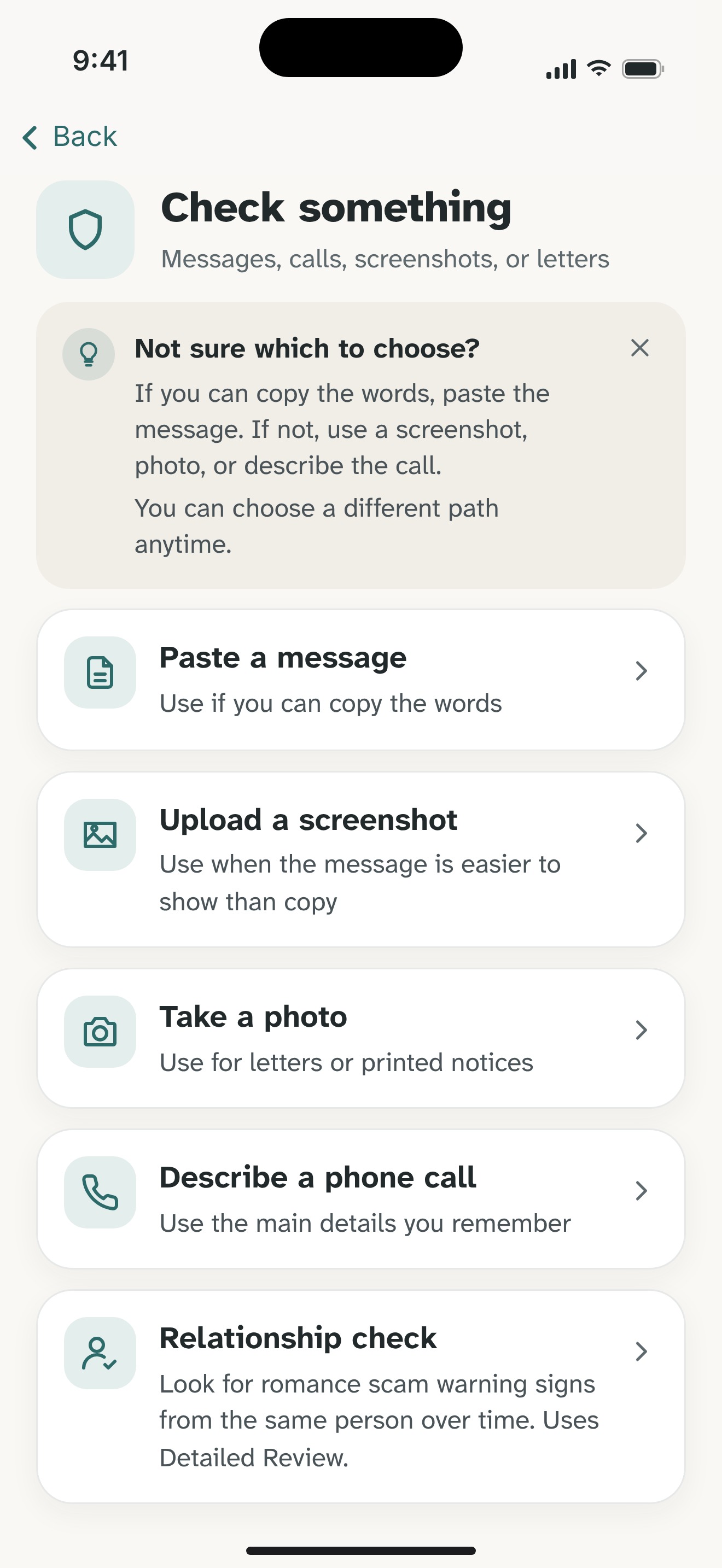

- Keep the request; remove private details. Copy visible wording or describe the call. Remove full codes, passwords, login links, identity details, and payment information.
- Choose a review. Supported pasted text and described calls can use an on-device Private Check. Screenshots and photos use Detailed Review, which sends chosen content to Olevo's backend and OpenAI after consent.
- Read the reasons and check independently. Use the suggested checks with the actual provider. Olevo reviews what you provide; it cannot authenticate the sender, open links, or access your accounts.

Start with 7 free Detailed Reviews on iPhone. Optional Premium. You can follow this guide without the app.