Before you respond
How to remove spam calendar invites on iPhone
To remove spam calendar invites on iPhone, first check whether you have one event or an unwanted calendar subscription. Keep links and support numbers in the entry unused.
By Olevo · · What reviewed means
Quick answer
To remove iPhone calendar spam, open Calendar itself and identify whether you have one unwanted event or a subscribed calendar. Use the app's delete or reporting control for an event, or its calendar information screen to unsubscribe. Leave links, payment buttons and support numbers inside the entry unused.
An event saying your iPhone is infected or your storage is expiring is not a device diagnosis. Removing an entry also does not undo a password or card disclosure. If you already followed its instructions, choose recovery steps for what you actually shared or installed.
Want a second opinion? See how Olevo can help
An event presents a warning as a reason to call
- The event title does not establish a device or account problem.
- The text selects the person who would supposedly fix it.
- Use the app's controls and official support rather than the event's contact route.
At a glance
iPhone calendar spam is unwanted event or calendar content that can carry misleading alerts and requests. A single invitation, a subscribed calendar and an actual account-security problem require different actions.
- An event supplies its own virus-removal or support link.
- A calendar alert asks for a password, code or payment.
- Repeated warnings lead to an unfamiliar subscription or download.
Use Calendar's own controls to remove or report unwanted content; investigate any exposed account separately.
Choose the calendar action that matches the situation
What you found
One unwanted event
Action in Calendar
Open it and use Delete Event, or Report Junk when offered
What still needs attention
Do not follow links or numbers in its text
What you found
An unwanted subscribed calendar
Action in Calendar
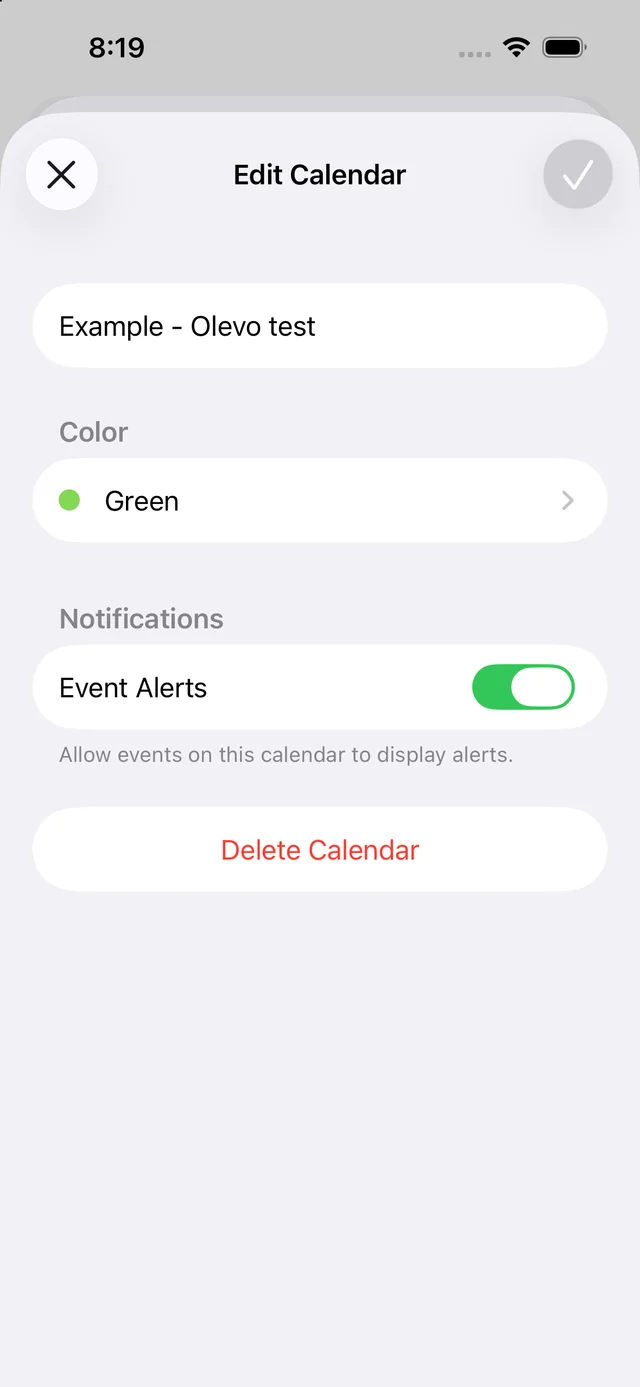
Calendars → information button → Unsubscribe, when offered
What still needs attention
Confirm you selected the unwanted subscription
What you found
A calendar you only want out of view
Action in Calendar
Deselect it in the Calendars list
What still needs attention
Hiding is not the same as ending a subscription
What you found
You entered details or paid through an event link
Action in Calendar
Remove/report the entry separately
What still needs attention
Use the affected account or payment provider's recovery process
Apple's cited instructions apply to iOS 26 or later. Controls depend on the event and calendar type; use official support if yours differ.
Identify the entry before removing calendar content
Open Calendar from the Home Screen instead of following the notification's link. Look at which calendar contains the unwanted item. A repeated title does not tell you whether there are several invitations or one subscribed calendar supplying many events. That distinction determines which control will help.
Use a narrow action aimed at the unwanted content. Deleting every calendar, removing an email account or resetting the phone is not a first step established by an event's wording. If the calendar belongs to a workplace, school or shared group, check ownership with the organizer or administrator before removing content other people use.
Delete or report one unwanted event
Apple's instructions start with the unwanted event inside Calendar. Where Delete Event is available, use it and confirm. For an event from an unknown contact, Report Junk may be offered, followed by Delete and Report Junk. Use the control the app provides rather than replying through the event's own text.
If there is no delete option, check which calendar owns the entry before taking a broader action. An invitation, an account-supplied event and a subscribed calendar can behave differently. Keep the details private and use Apple's current support when the type or owner is unclear.
Unsubscribe from a calendar or hide it
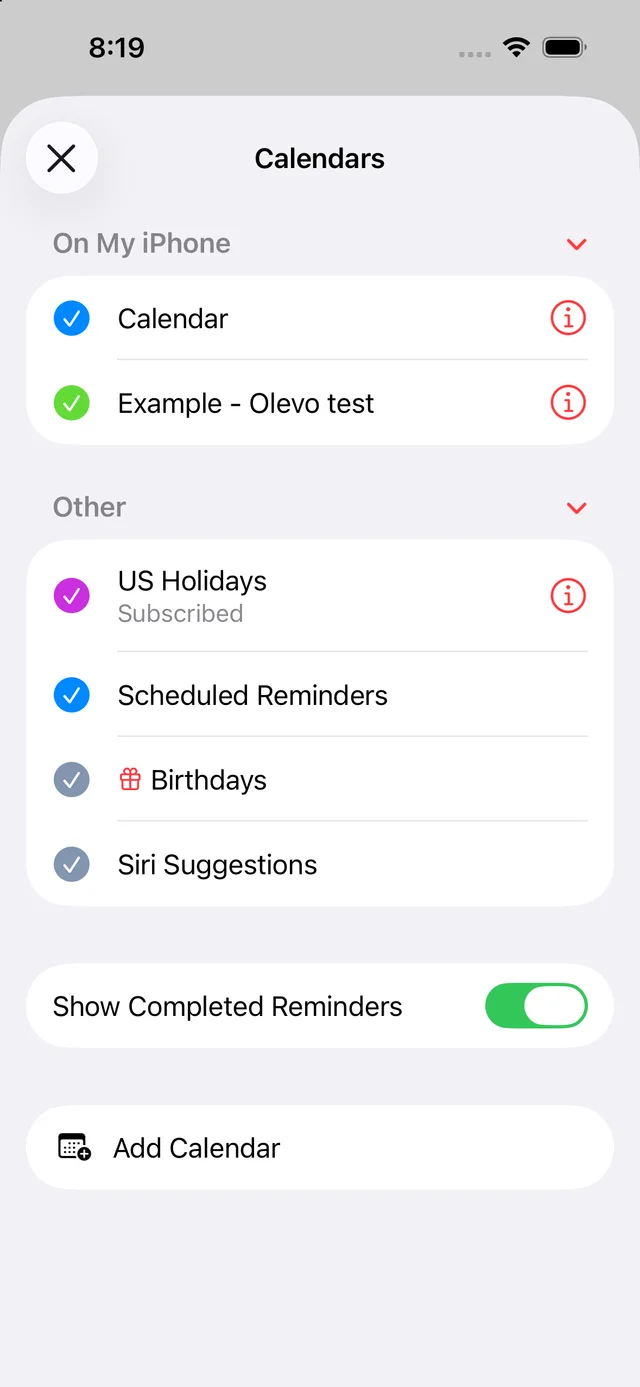
In Calendar, open Calendars and then the information button beside the relevant calendar. Apple lists Delete Calendar or Unsubscribe, depending on the type; confirm the applicable action only for the calendar you intend to remove. Read the name and ownership before proceeding.
Deselecting a calendar in the list changes what is visible. It is useful when you only want to hide it, but it is not the same task as unsubscribing. Some calendars cannot be removed; Apple uses US Holidays as an example and suggests hiding it instead. Do not interpret a missing removal button as proof that the phone is infected.

If a calendar alert asked you to call, pay or sign in
Read the requested action separately from where the words appeared. Calendar can display text; a calendar entry cannot authenticate a support agent, establish a card charge or diagnose the device. Leave its contact route unused and reach the relevant provider independently.
If you only saw the alert, remove or report the unwanted content. If you entered a password, shared a code, paid or installed something, use the corresponding recovery guide as well. Removing an event does not change exposed credentials, reverse a payment or remove unrelated installed software.
Signs to slow down
- The event's own text supplies the only route to fix its claim.
- A support conversation requests account secrets, money or remote access.
- Removing the warning is made conditional on installing an unfamiliar app.
What to do next
- Keep the entry's links and numbers unused.
- Identify the event's calendar and ownership.
- Use Calendar's own delete, report, unsubscribe or hide control for the relevant task.
- Secure any account or payment details disclosed separately.
How to report it
- Use Report Junk for an unknown event when Calendar offers it.
- Use Apple's official support if the calendar type or control is unclear.
- Report impersonation through the affected provider and use the relevant fraud-reporting route if money or information was taken.
Trusted sources
Delete calendars and remove events on iPhone
Apple Support
Published September 29, 2026, for iOS 26 or later. Distinguishes deleting/reporting an event, unsubscribing from a calendar and hiding one.
Recognize Apple impersonation and misleading alerts
Apple Support
Apple describes misleading device warnings, unwanted calendar invitations and requests for passwords, codes or remote access.
Steps after information or money was shared
Federal Trade Commission
US guidance about contacting affected account and payment providers. A report does not guarantee recovery or reimbursement.
Common questions
How do I remove spam calendar invites on iPhone?
Open Calendar and identify whether the unwanted item is an event or a subscribed calendar. Use the event's delete/report control when offered, or open Calendars and the relevant information button to unsubscribe. Apple's current instructions apply to iOS 26 or later; use official support if controls differ.
Why does calendar spam keep coming back after deleting an event?
Check whether the entries belong to an unwanted subscribed calendar. Removing one item and ending the subscription are different tasks. Open Calendar's calendar list, identify the source and use Unsubscribe if appropriate. Repetition alone does not diagnose an account takeover or a device infection.
Does hiding a calendar unsubscribe me from it?
Treat these as different actions. Deselecting a calendar in the list changes what is shown. To end an unwanted subscription, use its information screen and Unsubscribe when offered. Check the calendar's name and owner first, especially for a work, school or shared calendar.
Does a calendar virus warning mean my iPhone is infected?
The wording of an event is not a diagnosis. Leave its links and support numbers unused, and remove or report the unwanted content through Calendar. If you entered information, paid or installed something, address that action separately through the real account provider, payment issuer or trusted technical support.
How Olevo can help
Olevo can help you read what a calendar alert asks you to do.
Remove calendar names, attendees, addresses, private appointment details, full links and codes before a screenshot review. Olevo cannot inspect or remove calendars, diagnose malware or authenticate a support contact.
See how to review a message in Olevo
Read an unfamiliar calendar alert in parts
Use Calendar and official support to remove unwanted content. Olevo can help explain redacted alert wording; it cannot remove a calendar, inspect the device or diagnose malware.
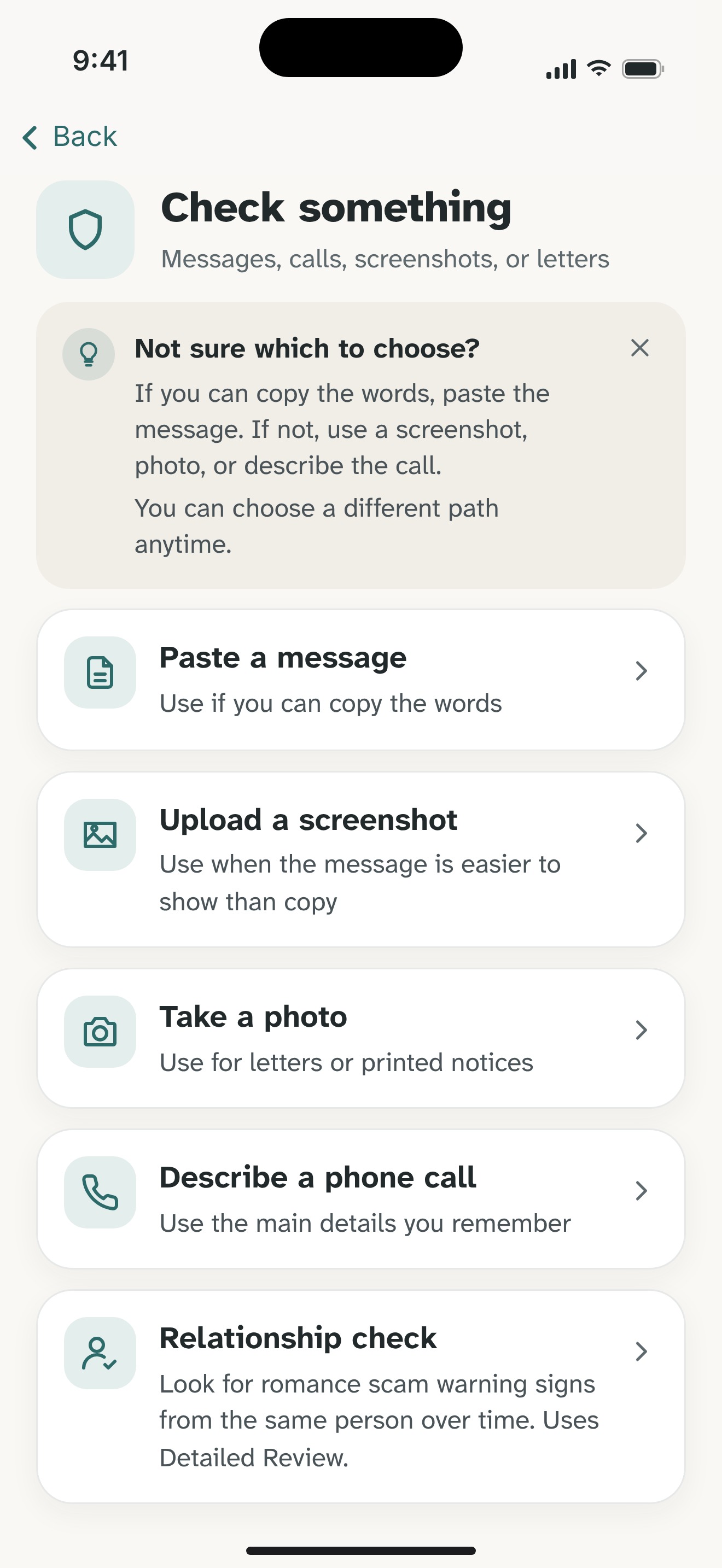
- Keep the request; remove private details. Copy visible wording or describe the call. Remove full codes, passwords, login links, identity details, and payment information.
- Choose a review. Supported pasted text and described calls can use an on-device Private Check. Screenshots and photos use Detailed Review, which sends chosen content to Olevo's backend and OpenAI after consent.
- Read the reasons and check independently. Use the suggested checks with the actual provider. Olevo reviews what you provide; it cannot authenticate the sender, open links, or access your accounts.

Start with 7 free Detailed Reviews on iPhone. Optional Premium. You can follow this guide without the app.